Note: when you run the downloaded file, Windows may show a warning that the app is "unrecognized". This is a standard reaction from Microsoft Defender SmartScreen to apps that aren't widely used yet — it doesn't mean the file is unsafe. Just follow the steps below.
How to run the app, step by step
Each step matches a screen you will see on your own computer.
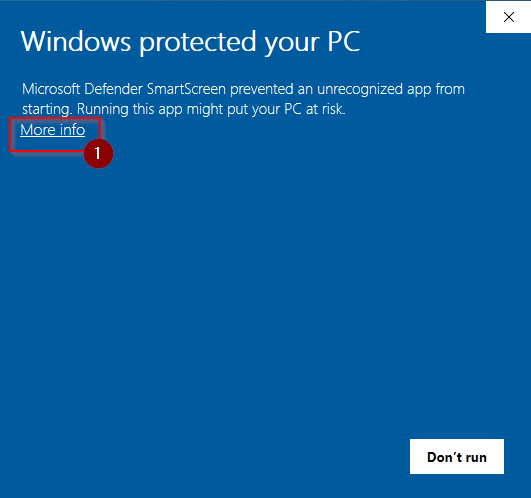
Click "More info"
When you run the downloaded file, a window titled "Windows protected your PC" will appear. This means Windows doesn't recognize this app yet, so it blocked it by default.
Click the blue link "More info" (highlighted in red) to continue.
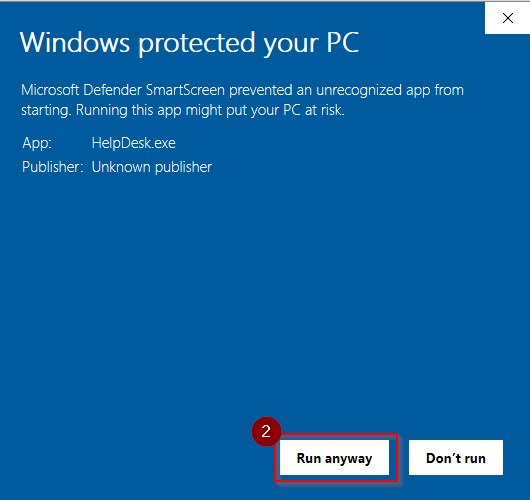
Click "Run anyway"
The window will expand to show additional details — you'll see the app name "HelpDesk.exe". In the bottom-right corner, click the "Run anyway" button.
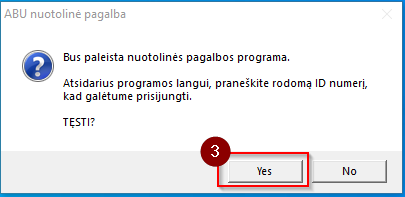
Confirm the launch — click "Yes"
A window titled "ABU nuotolinė pagalba" (remote support) will ask whether you want to start the remote support application. Click "Yes".
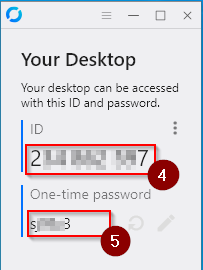
Share your ID and password with our specialist
The app window will open showing your computer's ID number and a one-time password.
Read these two values to our IT specialist over the phone, chat, or email — they need them to connect to your computer and help you.
Your data stays safe
The specialist will only see what you show them during the session, and the connection only works with your consent. Once the session is finished, simply close the app window — the connection will be dropped automatically.